CapCut Video Editor – Create Reels, Shorts & Social Media Videos
Creating engaging videos for social media has become easier than ever. Whether you want to make Instagram Reels, YouTube Shorts, TikTok-style short videos, promotional clips, travel videos, or personal content, a capable video editor can help turn ordinary footage into something polished and engaging. CapCut Video Editor is a popular video-editing platform that provides a wide range of tools for creating and editing short-form and social media videos.
CapCut combines essential editing features with templates, effects, transitions, text tools, music options, captions, and AI-assisted features. This makes it useful for both beginners and experienced creators who want to produce content without spending too much time on complicated editing.
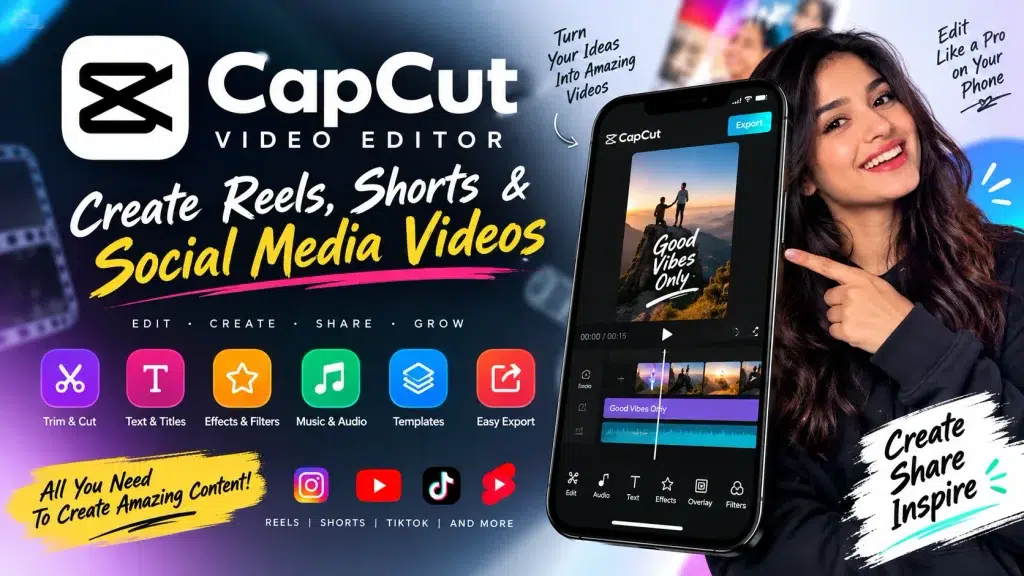
In this guide, we will explore the main CapCut video editing features, how you can use them for Reels and Shorts, and some practical tips for creating better social media videos.
What Is CapCut Video Editor?
CapCut is a video editing platform designed for creating and editing digital video content. It offers tools for trimming clips, splitting footage, adding text, applying filters, creating transitions, adjusting video speed, working with audio, and more.
The editor is especially popular for short-form content because creators can quickly combine multiple clips and prepare videos for social media platforms.
Depending on your device, region, and available version, CapCut features may differ. Some tools or assets may also require an account or a paid plan.
CapCut Video Editor Features
CapCut provides numerous tools that can help simplify the video creation process. Here is a quick overview:
| Feature | What It Can Help You Do |
|---|---|
| Video Trimming | Remove unnecessary sections from a video |
| Split & Merge | Divide clips or combine multiple videos |
| Text Tools | Add titles, captions and other text |
| Transitions | Create smoother changes between clips |
| Filters & Effects | Change the visual appearance of videos |
| Audio Editing | Add and adjust audio tracks |
| Speed Controls | Speed up or slow down selected footage |
| Templates | Create videos using ready-made layouts |
| Captions | Add subtitles or captions to videos |
| Background Tools | Modify or work with video backgrounds |
| Export Options | Prepare finished videos for sharing |
The exact availability of these features can vary according to the CapCut version and platform being used.
Create Instagram Reels with CapCut
Instagram Reels usually need to capture attention quickly. CapCut can be useful when you want to combine several short clips into one vertical video.
Start by selecting your best footage and arranging the clips in the desired order. Remove unnecessary pauses and keep the opening section interesting. You can then add transitions, text, captions, effects, or suitable audio.
For Reels, vertical formatting is generally the most practical choice. Before exporting, preview the complete video and make sure important text is clearly visible on a mobile screen.
Create YouTube Shorts
CapCut can also be used to prepare short vertical videos for YouTube Shorts.
You can import recorded footage, cut out unwanted sections, add text overlays, adjust audio, and use visual effects where appropriate. If your video includes spoken content, captions can make it easier for viewers to follow.
Avoid adding too many effects simply because they are available. A clean video with a clear message can often be more effective than one filled with distracting animations.
Use CapCut Templates
Templates can be useful when you need to create content quickly.
A template generally provides a predefined visual structure, timing, transitions, or effects. You can add your own compatible photos or videos and customize the result.
Templates may work well for travel clips, photo slideshows, promotional videos, celebrations, short-form entertainment content, and social media posts.
However, creators who want a distinctive visual identity may prefer manual editing rather than relying entirely on templates.
Add Text and Captions
Text is an important element of many social media videos because people may initially watch content without focusing on the audio.
CapCut’s text and caption tools can help you display headlines, explanations, calls to action, or subtitles directly within a video.
Keep on-screen text short and readable. Use good contrast between the text and background, and avoid placing important information too close to the edge of the screen where platform interfaces may cover it.
Add Music and Sound
Audio can dramatically change the feel of a video. Depending on the available tools and assets, creators can work with music, sound effects, recorded audio, or voiceovers.
When publishing commercially or using videos for advertising, make sure you have the necessary rights or permissions for any music, footage, images, fonts, or other copyrighted material included in your project.
Music that is available in an editing platform is not automatically licensed for every possible advertising or commercial use, so always check the applicable terms.
CapCut for Social Media Content
One major advantage of CapCut is that the same editing workflow can be adapted for different types of content.
Creators can use it for:
- Instagram Reels
- YouTube Shorts
- Short promotional videos
- Product videos
- Educational clips
- Travel videos
- Tutorials
- Personal videos
- Facebook video content
- Social media advertisements
Before publishing, check the latest video specifications and advertising requirements of the platform where your content will appear.
Tips for Creating Better Videos with CapCut
The first few seconds of a short video are particularly important. Start with the strongest visual, question, statement, or key information rather than using a long introduction.
Keep individual clips concise and remove sections that do not add value. Use transitions selectively and choose effects that support the content instead of distracting from it.
For informational videos, captions can improve accessibility and help communicate the message even when viewers are not listening to the audio.
It is also useful to preview your final edit on a mobile-sized screen before publishing. Check text readability, audio levels, spelling, framing, and overall pacing.
Is CapCut Good for Beginners?
CapCut can be a practical option for beginners because many common editing functions are presented in an accessible interface.
A new user can begin with basic tasks such as importing a video, trimming clips, adding text, adjusting audio, and exporting the finished project. As editing skills improve, users can explore more advanced effects, keyframes, animations, background tools, and other available features.
You do not need to use every feature to create a good video. Learning a few essential editing tools first is often the easiest approach.
CapCut Free and Paid Features
CapCut offers a mixture of features and assets, and availability can vary by platform, region, account, and subscription level. Some tools may be accessible without payment, while certain premium templates, effects, AI tools, cloud features, or other assets may require a paid plan.
Always check the current CapCut app or official service for the latest information about feature availability and pricing.
Frequently Asked Questions (FAQ)
1. What is CapCut used for?
CapCut is used for editing videos and creating content such as Reels, Shorts, social media videos, promotional clips, tutorials, and personal videos.
2. Can I create Instagram Reels with CapCut?
Yes. CapCut provides editing tools that can be used to prepare vertical short-form videos suitable for Instagram Reels.
3. Can CapCut be used for YouTube Shorts?
Yes. You can edit vertical videos, add text, captions, audio, effects, and other elements before publishing your content on YouTube.
4. Does CapCut provide video templates?
CapCut offers templates and ready-made editing styles, although availability may vary depending on your device, account, version, and region.
5. Can I add captions to videos?
CapCut provides text and caption-related features that can help creators add subtitles and on-screen information.
6. Is CapCut suitable for beginners?
Yes. Its basic editing workflow is accessible to beginners, while additional tools are available for users who want more control over their edits.
7. Can CapCut be used for social media advertisements?
It can be used to edit advertising creatives. However, advertisers should ensure that all music, footage, images, and other assets have appropriate commercial usage rights and that the final ad follows the advertising platform’s policies.
Final Words
CapCut Video Editor offers a convenient set of tools for creating Reels, Shorts, and other social media videos. From basic trimming and text overlays to templates, effects, captions, audio tools, and more advanced editing options, creators can build videos for a variety of purposes.
For the best results, focus on a strong opening, clear visuals, readable text, balanced audio, and concise editing. Rather than using every available effect, choose the tools that support your message and make the final video easier and more enjoyable to watch.
Whether you are learning video editing, creating social media content, or preparing promotional videos, CapCut can provide a flexible workflow for turning your footage into polished short-form content.